Using the Web’s Bluetooth API
The Web Bluetooth API exists since the beginning of 2017 (Chrome v56). By now I haven’t seen it in action on any website. Probably the browser compatibility table explains why. Nonetheless, I wanted to give it a try using a BLE sensor kit from Texas Instruments and SvelteKit in combination with TailwindCSS. Check out the video to see how it looks or directly jump to the repo.
Complete Source Code: https://github.com/classycodeoss/web-ble-api
Disclaimer
As mentioned above the Web Bluetooth API is not widely supported. Make sure to run any of the code shown below on Windows and macOS on either Chrome, Opera or Edge. For mobile devices use an Android device running Chrome, Opera or Samsung Internet. Currently, iOS is not supported.
NOTE: In case your browser fits the above description but seems to have issues accessing the Bluetooth Web API try enabling the flag
#enable-experimental-webassembly-features. For Chrome and Opera this can be done by typing<browser>://flagsinto your search bar and look for the above-mentioned flag. For Edge take a look at Microsoft’s docs.
The BLE Sensor
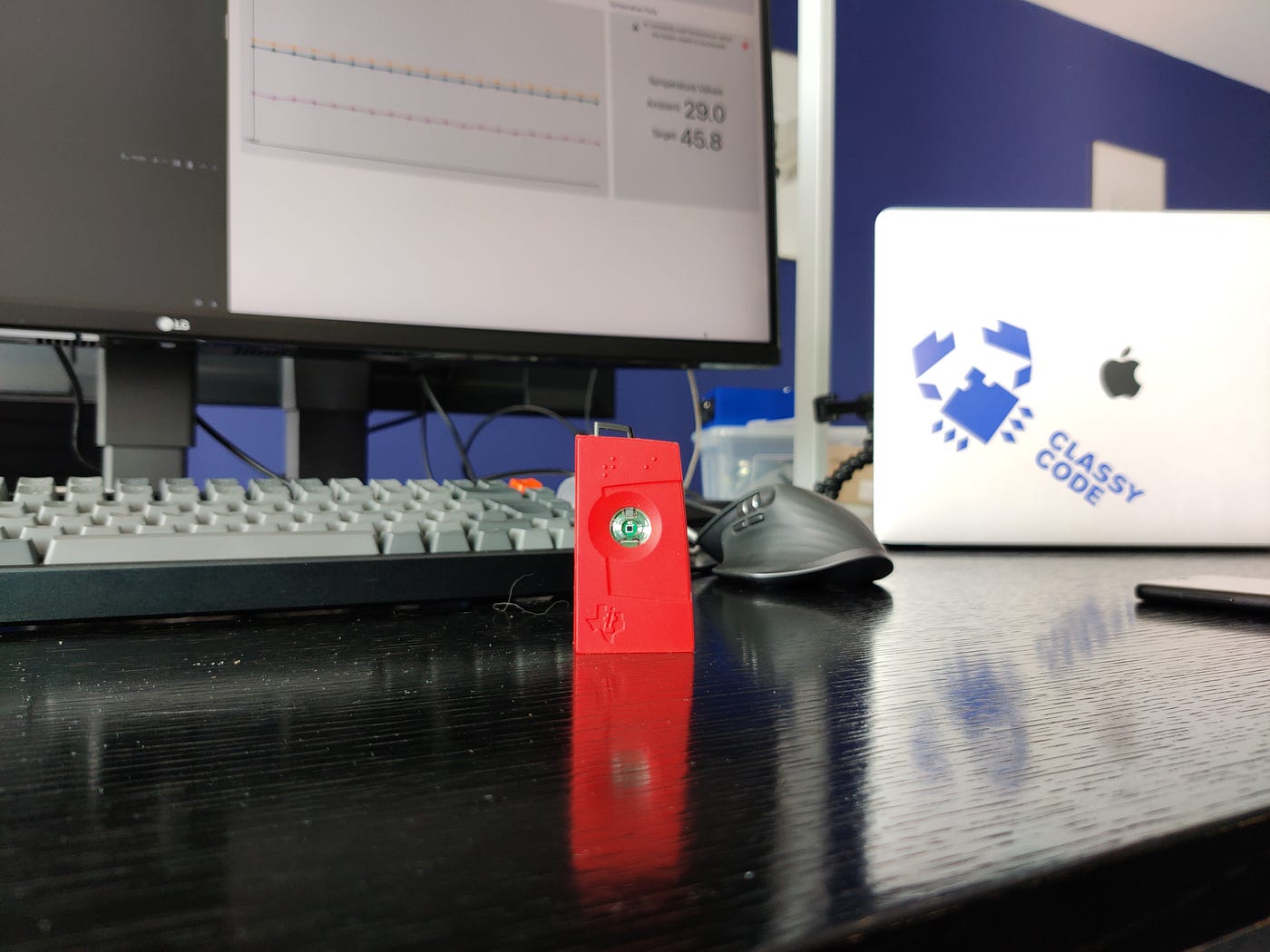
I used a fairly old (~2013) BLE Sensor the CC2541 Sensor Tag from Texas Instruments. Featuring an Accelerometer and Gyroscope, Humidity, Temperature and Pressure Sensors as well as a Magnetometer. I’ll use the accelerometer as well as the temperature sensor. The accelerometer can easily provide interesting live data. However, the temperature sensor is rather static, so I’ll only capture data “on-demand” with a click on the sensor’s left button.
Bluetooth Low Energy devices expose their functionality as GATT servers. Communicating via the Generic ATTribute protocol with their respective clients. Clients are usually the high-powered devices (e.g. Smartphones, Tablets, Desktops) connecting to a small, cost-effective BLE device.
The client in our case the browser asks the server (aka device) for a specific service holding one or more data channels the so-called characteristics. In my case, this is the Accelerometer service holding multiple characteristics. Those characteristics form data channels used to send and receive data.
To access such a characteristic a UUID is used to identify the wrapping service as well as its characteristics. Standardized characteristics (e.g. heart rate, height, etc.) have their own 16-bit UUID managed and published by the Bluetooth SIG (see here). For my sensor, however, there are custom 128-bit UUIDs. More specifically for our accelerometer, there are 3 UUIDs for the 3 characteristics and one for the service itself.
If you want to know more about the GATT protocol used for BLE devices you may do so either at learn.adafruit.com or oreilly.com
Enabling Bluetooth Web API
My basic project setup is a SvelteKit project with TailwindCSS for easier styling. If you want to know how that is set up take a look at Tailwind’s documentation. That should guide you through the whole process, however, feel free to use any other setup of your choice.
NOTE: I am using the TypeScript version of SvelteKit, you can easily configure that during the SvelteKit project setup or just use regular JavaScript.
To determine if a browser supports the Web Bluetooth API, let’s start with checking if Bluetooth can be enabled. To access the Web Bluetooth API, I simply call navigator.bluetooth which offers a function getAvailability() that determines whether Bluetooth is enabled or not. Precisely in a browser where Bluetooth is not supported, navigator.bluetooth won’t even be available and therefore throw an error. Wrapped in a function that looks something like this.
Running that in a browser will print to the console if Bluetooth is enabled and if not why it couldn’t be loaded.
Connecting To A Device
As I now know if the current browser supports Bluetooth or not, let’s connect to a device. That is done with the function requestDevice([options]). But let’s take a look at those options first. MDN Web Docs specify an options object as follows:
filters[]: An array ofBluetoothScanFilters. This filter consists of an array ofBluetoothServiceUUIDs, anameparameter, and anamePrefixparameter.
optionalServices[]: An array ofBluetoothServiceUUIDs.
acceptAllDevices: A boolean value indicating that the requesting script can accept all Bluetooth devices. The default isfalse.
As I know that I want to connect to a specific BLE Sensor from Texas Instruments, I restricted the results with a name prefix. In my case, this is TI which are the first letters of my sensor’s name. With that, I prevent devices with unreadable or non-matching names from showing up. If you do not know the name (or parts of it) of your device you could simply set acceptAllDevices to true.
Make sure to also add the accelerometer service UUID to optional Services. If you don’t the Bluetooth API will throw an error while attempting to connect that your service is not listed as an optional service.
Reading Accelerometer Data
Establishing a connection to my BLE sensor does not yet yield any data. I first need to connect to and start our accelerometer data characteristic. To do this, I have to get the primary (wrapping) service associated with the accelerometer. You can read that UUID directly from the above UUID table. With said UUID I can call getPrimaryService(<UUID>) which then returns (if there is one) the service with my UUID.
Once I have that service I can also get the corresponding characteristics. On the returned service, call getCharacteristic(<UUID>) to query for any characteristic.
Taking a look at the three characteristics Data, Configuration and Period might lead to the conclusion that only data is needed. However, if you query for that characteristic and register a change listener on any value changes on Data, nothing happens.
That is because the characteristic on my sensor first needs an enable command to start notifying the client about any changes. That, in my case, simply is a plain 1 sent to it. I’ll also change the default 1s notification interval to 100ms. Finally, I add a subscription to any characteristic value changes. The full snippet then looks like this.
Reading the log I receive an event containing the value. That value can be accessed using event.target.value and comes as a DataView object containing an ArrayBuffer with three 8-bit integer values. Those three integers correspond to the three axes X, Y and Z of the accelerometer. They can be easily read out with JavaScript’s built-in getInt8(byteOffset) method.
With that, we are constantly receiving a stream of values between -128 and 127 on all 3 axes. But just printing them to the console is a bit boring isn’t it?
Make It Visual
For once I wanted to build something without any NPM package doing all the work for me. So I built two helper classes that allow me to normalize (only values between 0 and 1) the received data and draw them onto a canvas. I won’t cover their functionality here, but feel free to take a look at those helpers in the Git repository.
I decided to use the last 20 values of the accelerometer which correspond to the last 2s of movement from the sensor. That being said, I updated the above logging statement to this function which stores the most recent 20 values in an array.
I also added the last method redrawData() which uses the helper classes mentioned to normalize the data and draw each axis onto a canvas element.
And I added a convenience wrapper that extracts the axes and normalizes them.
Then finally I put together an onMount() (SvelteKit’s way of initializing a component) method which creates a canvas and registers the listener on our accelerometer’s data characteristic.
So with a bit of HTML and tailwind utility classes, the final component with shortened methods looks like this.
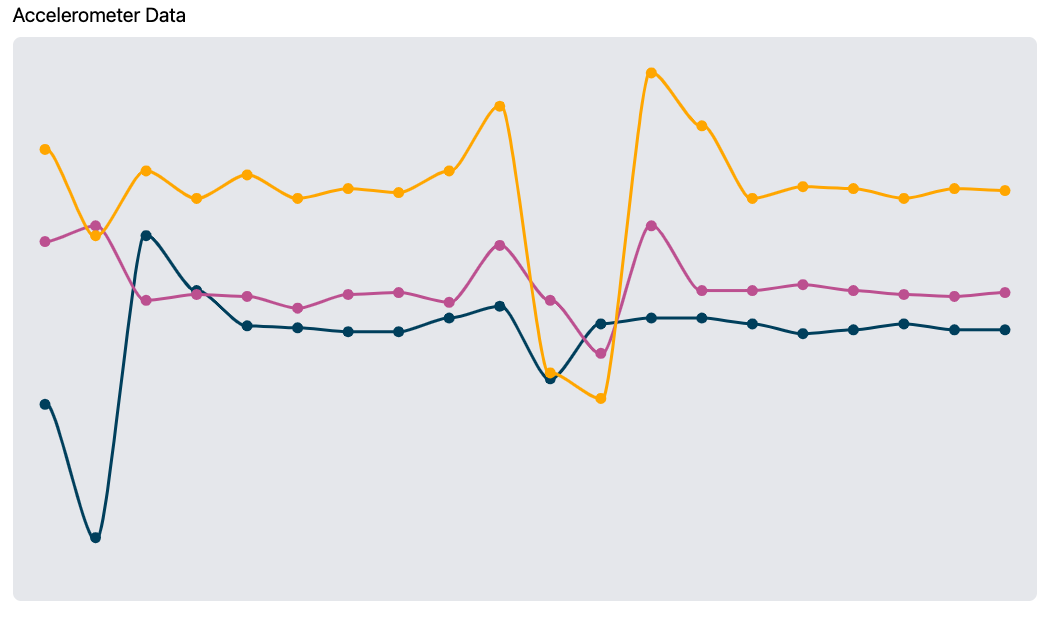
That results in a graph which, depending on the forces measured on the accelerometer, might look something like this.
Adding Some Improvements
If we go back to where we started I think it makes sense to also visualize if Bluetooth is enabled. We might also output a friendly reminder showing what to do if it isn’t. So I wrote a small “display only” component doing exactly that.
Further, it would also make sense to display the device’s basic information. Which according to the properties contained in a Bluetooth Device (see MDN Web Docs) is only useful for the name and ID of the device. That resulted in another “display only” component.
Enable the improvements
Let’s add those two components to the index.svelte file marking our entry point of the app. And also add some conditions that the accelerometer graph, as well as the device information are only displayed if a device is connected. I again shortened the above-shown methods dealing with enabling Bluetooth and connecting to a device to not duplicate any code.
What you’ll also notice is that there is a second component showing temperature data values. Adding that sensor is except from the UUIDs pretty much the same as the accelerometer. If you want to see how that works, feel free to check out the repo.
Conclusion
Even though the Bluetooth API for web applications is not yet supported in all browsers, in Chrome it seemed very stable. The implementation was really straightforward and for anyone with a little JavaScript / TypeScript knowledge, it shouldn’t be a big problem. After playing around with the API, I am even more amazed by the fact that I haven’t seen it in action yet. Probably the support for all browsers as well as a lack of background configurations is too much of a drawback compared to native apps.
What’s your experience with the Bluetooth Web API? Have you ever seen it on a Website? Let me know about it via comment or DM.


 浙公网安备 33010602011771号