
InternLM实战第四期-L0-玩转HF
玩转HF/魔搭/魔乐社区
教程链接:https://github.com/InternLM/Tutorial/tree/camp4/docs/L0/maas
模型下载(modelscope)
魔搭社区平台
ModelScope 是一个“模型即服务”(MaaS)平台,由阿里巴巴集团的达摩院推出和维护。它旨在汇集来自AI社区的最先进的机器学习模型,并简化在实际应用中使用AI模型的流程。通过ModelScope,用户可以轻松地探索、推理、微调和部署各种AI模型。
InternLM模型下载
创建虚拟环境后安装modelscope需要的三方库。
pip install modelscope -t /root/env/maas
pip install numpy==1.26.0  -t /root/env/maas
pip install packaging -t /root/env/maas
创建存放模型的demo目录 mkdir -p /root/ms_demo。
这里我们采用modelscope的cli工具来下载指定文件,在命令行输入以下命令:
# internlm2_5-7b-chat
modelscope download \
    --model 'Shanghai_AI_Laboratory/internlm2_5-7b-chat' \
    tokenizer.json config.json model.safetensors.index.json \
    --local_dir '/root/ms_demo'

模型上传
将下载好的config.json文件上传到对应HF平台,这里我们使用Github的CodeSpace。
通过CLI上传 Hugging Face同样是跟Git相关联,通常大模型的模型文件都比较大,因此我们需要安装git lfs,对大文件系统支持。
curl -s https://packagecloud.io/install/repositories/github/git-lfs/script.deb.sh | sudo bash
# sudo apt-get install git-lfs # CodeSpace里面可能会有aptkey冲突且没有足够权限
git lfs install # 直接在git环境下配置git LFS
pip install huggingface_hub
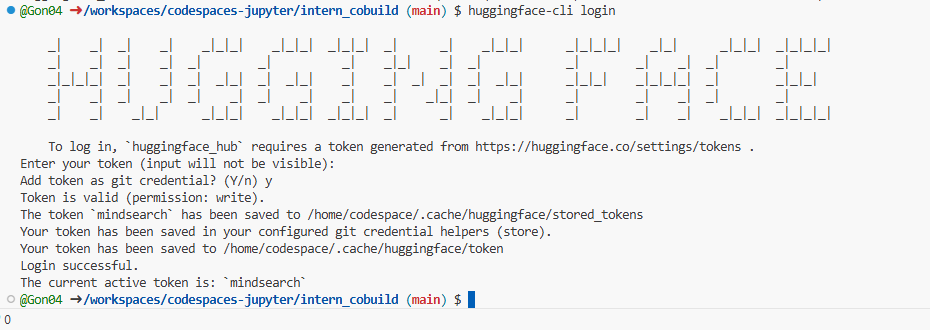
接着可以在CodeSpace里面,使用命令登录。使用huggingface-cli login命令进行登录,登录过程中需要输入用户的Access Tokens。
# 配置 Git 以存储你的凭证信息,从远程仓库拉取或推送数据时,将用户名和密码存储在一个文件中,而不是每次都提示你输入。
git config --global credential.helper store
huggingface-cli login # 登录
此时需要输入Token。
创建一个新项目。
cd /workspaces/codespaces-jupyter

#intern_study_L0_4就是model_name
huggingface-cli repo create intern_study_L0_4

# 克隆到本地 your_github_name 注意替换成你自己的
git clone https://huggingface.co/{your_github_name}/intern_study_L0_4
可以看到克隆好的intern_study_L0_4文件夹。
我们可以把训练好的模型保存进里面,这里考虑到网速问题,只上传我们刚刚下载好的config.json,把它复制粘贴进这个文件夹里面,还可以写一个README.md文件,比如可以粘贴以下内容:
# 书生浦语大模型实战营camp4
- hugging face模型上传测试
- 更多内容请访问 https://github.com/InternLM/Tutorial/tree/camp4
现在可以用git提交到远程仓库.
cd intern_study_L0_4
git add .
git commit -m "add:intern_study_L0_4"
git push

注意,如果git push 报错,可能是第一次上传时需要验证,请使用以下命令,注意替换<>里面的内容,然后再次git push一下就可以了
git remote set-url origin https://<user_name>:<token>@huggingface.co/<repo_path>

# 如 git remote set-url origin https://blank:hf_xxxxxxxxxxx@huggingface.co/blank/intern_study_L0_4

# 这里blank和hf_xxxxxxxxxxxx只是示例 请替换为你的username和之前申请的access token

git pull origin
现在可以在Hugging Face的个人profile里面看到这个model.

Space上传
Hugging Face Spaces 是一个允许我们轻松地托管、分享和发现基于机器学习模型的应用的平台。Spaces 使得开发者可以快速将我们的模型部署为可交互的 web 应用,且无需担心后端基础设施或部署的复杂性。
首先访问以下链接,进入Spaces。在右上角点击Create new Space进行创建:
https://huggingface.co/spaces
在创建页面中,输入项目名为intern_cobuild,并选择Static应用进行创建.
创建成功后会自动跳转到一个默认的HTML页面。
创建好项目后,回到我们的CodeSpace,接着clone项目。
cd /workspaces/codespaces-jupyter
# 请将<your_username>替换你自己的username
git clone https://huggingface.co/spaces/<your_username>/intern_cobuild
cd /workspaces/codespaces-jupyter/intern_cobuild

找到该目录文件夹下的index.html文件,修改我们的html代码:
点击查看代码
<!doctype html>
<html>
<head>
  <meta charset="utf-8" />
  <meta name="viewport" content="width=device-width" />
  <title>My static Space</title>
  <style>
    html, body {
      margin: 0;
      padding: 0;
      height: 100%;
    }
    body {
      display: flex;
      justify-content: center;
      align-items: center;
    }
    iframe {
      width: 430px;
      height: 932px;
      border: none;
    }
  </style>
</head>
<body>
  <iframe src="https://colearn.intern-ai.org.cn/cobuild" title="description"></iframe>
</body>
</html>
保存后就可以push到远程仓库上了,它会自动更新页面。
git add .
git commit -m "update: colearn page"
git push

如果报错:remote: Password authentication in git is no longer supported. You must use a user access token or an SSH key instead.
请再次设置这个项目的验证,这个地方需要用户的Access Tokens(具体获取方式见下文 "2.1.5 模型上传")
git remote set-url origin https://<user_name>:<token>@huggingface.co/<repo_path>
例如:
git remote set-url origin https://jack:hf_xxxxx@huggingface.co/spaces/jack/intern_cobuild/
然后再次git push即可
再次进入Space界面,就可以看到我们实战营的共建活动


 浙公网安备 33010602011771号