
深入理解Linux系统调用
一、实验环境配置
系统环境:Ubuntu16.04
实验说明:本人学号末两位70,对应__64x_sys_msgrcv系统调用
注:不能在上次实验的基础上做,要重新下载解压linux-5.4.34文件
1、安装开发工具
1 sudo apt install build-essential
2 sudo apt install qemu # install QEMU
3 sudo apt install libncurses5-dev bison flex libssl-dev libelf-dev
2、下载内核源码
1 sudo apt install axel
2 axel -n 20 https://mirrors.edge.kernel.org/pub/linux/kernel/v5.x/
3 linux-5.4.34.tar.xz
4 xz -d linux-5.4.34.tar.xz
5 tar -xvf linux-5.4.34.tar
6 cd linux-5.4.34
3、配置内核选项
make defconfig # Default configuration is based on 'x86_64_defconfig'
make menuconfig
# 打开debug相关选项
Kernel hacking --->
       Compile-time checks and compiler options --->
           [*] Compile the kernel with debug info
           [*] Provide GDB scripts for kernel debugging
 [*] Kernel debugging
# 关闭KASLR,否则会导致打断点失败
Processor type and features ---->
    [] Randomize the address of the kernel image (KASLR)
4、编译和运行内核
1 make -j$(nproc) # nproc gives the number of CPU cores/threads
2 available
3 # 测试⼀下内核能不能正常加载运⾏,因为没有⽂件系统最终会kernel panic
4 qemu-system-x86_64 -kernel arch/x86/boot/bzImage
5、制作根文件系统
1 ⾸先从https://www.busybox.net下载 busybox源代码解压,解压完成后,跟内核⼀样先配置编译,并安装。
2 axel -n 20 https://busybox.net/downloads/busybox-1.31.1.tar.bz2
3 tar -jxvf busybox-1.31.1.tar.bz2
4 cd busybox-1.31.1
1 make menuconfig
2 记得要编译成静态链接,不⽤动态链接库。
3 Settings --->
4     [*] Build static binary (no shared libs)
5 然后编译安装,默认会安装到源码⽬录下的 _install ⽬录中。
6 make -j$(nproc) && make install
1 然后制作内存根⽂件系统镜像,⼤致过程如下:
2 mkdir rootfs
3 cd rootfs
4 cp ../busybox-1.31.1/_install/* ./ -rf
5 mkdir dev proc sys home
6 sudo cp -a /dev/{null,console,tty,tty1,tty2,tty3,tty4} dev/
 1 准备init脚本⽂件放在根⽂件系统跟⽬录下(rootfs/init),添加如下内容到init⽂件。
 2 #!/bin/sh
 3 mount -t proc none /proc
 4 mount -t sysfs none /sys
 5 echo "Wellcome MengningOS!"
 6 echo "--------------------"
 7 cd home
 8 /bin/sh
 9 给init脚本添加可执⾏权限
10 chmod +x init
1 打包成内存根⽂件系统镜像(rootfs目录下)
2 find . -print0 | cpio --null -ov --format=newc | gzip -9 > ../rootfs.cpio.gz
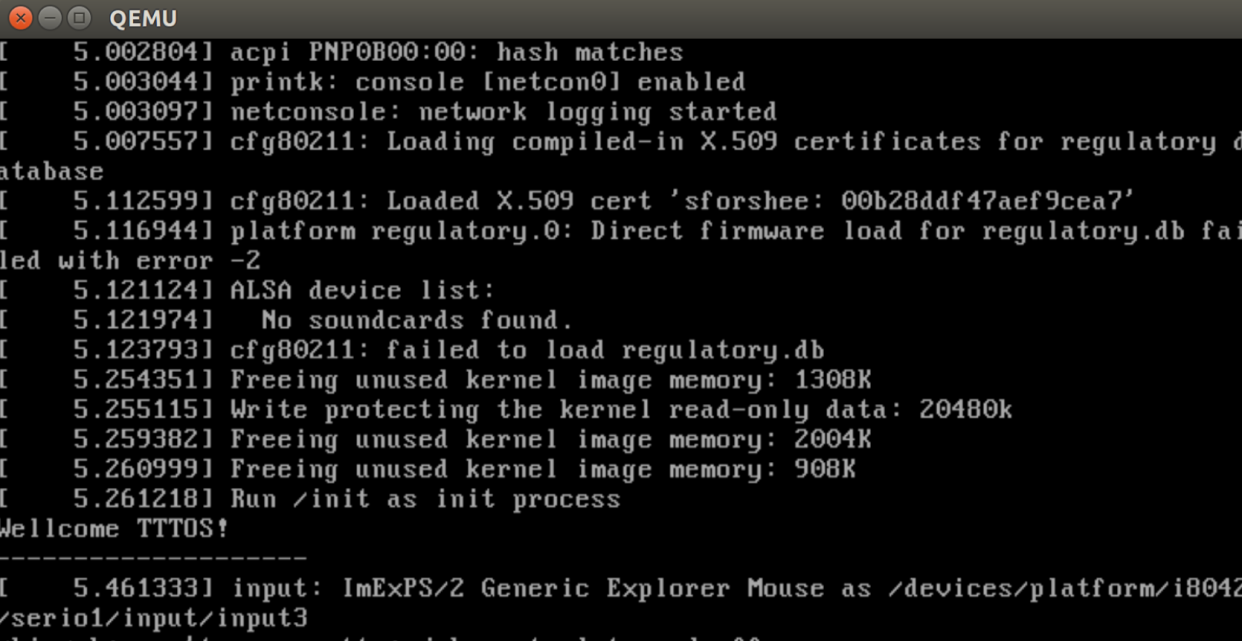
3 测试挂载根⽂件系统,看内核启动完成后是否执⾏init脚本
4 qemu-system-x86_64 -kernel linux-5.4.34/arch/x86/boot/bzImage -initrd rootfs.cpio.gz
可以看到init脚本已被执行
二、使用gdb跟踪调试
1、gdb问题处理
在用gdb打断点的时候,出现Remote ‘g’ packet reply is too long错误,查询得到参考解决办法https://blog.csdn.net/superking3188/article/details/8477574。
改完代码后进行重新编译和安装
./configure
make
make install
2、验证内核初始化
启动虚拟机
qemu-system-x86_64 -kernel linux-5.4.34/arch/x86/boot/bzImage -initrd rootfs.cpio.gz -S -s
在linux-5.4.34目录下启动gdb
gdb vmlinux
target remote:1234
在start_kernel、trap_init、cou_init、syscall_init位置打上断点

依次执行,可以清晰的看出系统内核初始化的顺序为start_kernel->trap_init->cou_init->syscall_init

3、跟踪70号系统调用
在linux-5.4.34/arch/x86/entry/syscalls/syscall_64.tbl文件中可以查看70对应的系统调用为__64x_sys_msgrcv

为了观察该系统调用,在rootfs/home目录下写一个程序来触发系统调用
int main()
{
    asm volatile(
    "movl $0x46,%eax\n\t" //使⽤EAX传递系统调⽤号70
    "syscall\n\t" //触发系统调⽤
    );
    return 0;
}
对该程序进行静态编译
gcc testSys.c -o testSys -static
重新打包内存跟文件系统镜像
find . -print0 | cpio --null -ov --format=newc | gzip -9 > ../rootfs.cpio.gz
启动虚拟机
qemu-system-x86_64 -kernel linux-5.4.34/arch/x86/boot/bzImage -initrd rootfs.cpio.gz -S -s
在linux-5.4.34目录下启动gdb调试
gdb vmlinux
target remote:1234
b __64x_sys_msgrcv
c
此时可以看到home目录下已经存在我们刚刚生成的可执行文件,执行该文件即可触发70号系统调用

获取到了70号系统调用的返回信息

使用bt命令查看栈信息

可以看到该系统调用涉及到do_syscall_64和entry_SYSCALL_64两个内核函数。
三、系统调用的保存和恢复现场
syscall指令触发系统调用,通过MSR寄存器找到了中断函数入口,系统调用入口为entry_SYSCALL_64,其中使用了swapgs这一方法来快照式的保存现场,加快了系统调用,随后对一些相关寄存器进行压栈操作。
随后执行了do_syscall_64函数

在do_syscall_64函数中,在ax寄存器中获取到系统调用号所对应的入口,跳转执行。

随后便执行70号系统调用相关内容
调用结束后准备恢复现场

entry_SYSCALL_64函数的最后进行现场恢复

四、总结
本次实验中,学习了gdb工具,使用gdb断点调试完成了内核初始化顺序的验证;查看了70号系统调用的调用过程,详细了解了系统调用的保存和恢复现场。
保存和恢复现场过程:syscall指令触发系统调用 --> entry_SYSCALL_64( )执行现场保存 --> do_syscall_64( )查找调用入口并执行 --> 准备恢复现场 --> entry_SYSCALL_64( )最后完成现场恢复

 浙公网安备 33010602011771号